
Wait—is this really a deal? Or is it the classic raise-then-discount trick?
Today, I’ll show you a free tool that lets you spot fake sales in 3 seconds.
Have you ever experienced these situations when shopping on Amazon?
- Bought something on “sale” only to realize it wasn’t cheaper at all
- The price dropped the day after you ordered
- No idea if the current price is high or low
The tool I’m introducing today—Keepa—lets you see Amazon’s price history, so you’ll never overpay again.
Common “Fake Sale” Tricks
Let’s look at some real examples you might have encountered.
🎭 Trick #1: Raise Then Discount
Limited 33% OFF!
🎭 Trick #2: Selling at Peak Price
A product is listed at ¥8,000 with no sale tag, but what you don’t know is—
🎭 Trick #3: Prime Day/Black Friday “Fake Deals”
During big sales, a product shows “Prime Day Deal”:
❌ Without Keepa
- Only see current price
- Can’t tell if it’s high or low
- Easily fooled by “Sale” tags
- Regret after buying
✅ With Keepa
- See price history at a glance
- Know if it’s a peak or low
- Spot fake sales instantly
- Buy with confidence
What is Keepa? What Can It Do?
Keepa is a browser extension that displays price history graphs directly on Amazon product pages.
View Price History
See price trends over months or even years
Price Drop Alerts
Set a target price and get notified automatically
Spot Fake Sales
Price history reveals deceptive discounts
Works in 12 Countries
Japan, US, Europe, and more Amazon sites
For regular consumers, the free version is more than enough.

5-Minute Installation Guide
Keepa works with Chrome, Firefox, Edge, and other major browsers. Here’s how to install on Chrome:
Click the button below to go to Keepa’s extension page:

In the confirmation dialog, click “Add extension”
Refresh the page, and you’ll see Keepa’s price graph!
Mobile browsers don’t support extensions, but you can:
• Visit keepa.com to search products and view price history
• Download the official Keepa app (iOS/Android)
How to Read the Price Graph
After installation, a price graph appears on Amazon product pages. Don’t worry—you only need to understand one line.
The Key Line: Blue = Amazon Price
📊 Understanding the Graph
- Blue line — New item price on Amazon (focus on this)
- Orange line — Amazon’s own price (when available)
- Black line — Used item prices
For most shoppers, just look at the blue line.

How to Tell if the Price is High or Low
Choose “3 months” or “1 year” to see the overall trend
• Near all-time low → ✅ Good deal, buy now!
• Near all-time high → ⚠️ Consider waiting
• Much higher than usual → ❌ Possible fake sale
Below the graph, you’ll see “Lowest,” “Highest,” and “Average” prices
Setting Up Price Drop Alerts
Found something you want but the price is too high? Set up price tracking and get notified automatically when it drops to your target price.
How to Set Up
Click the “Track product” tab at the top of the graph
Enter your desired price in the “Amazon” field
💡 Tip: Use the historical low as a reference
Enter your email address to receive price drop alerts
(Requires free Keepa account registration)
Done! Just wait for the email notification
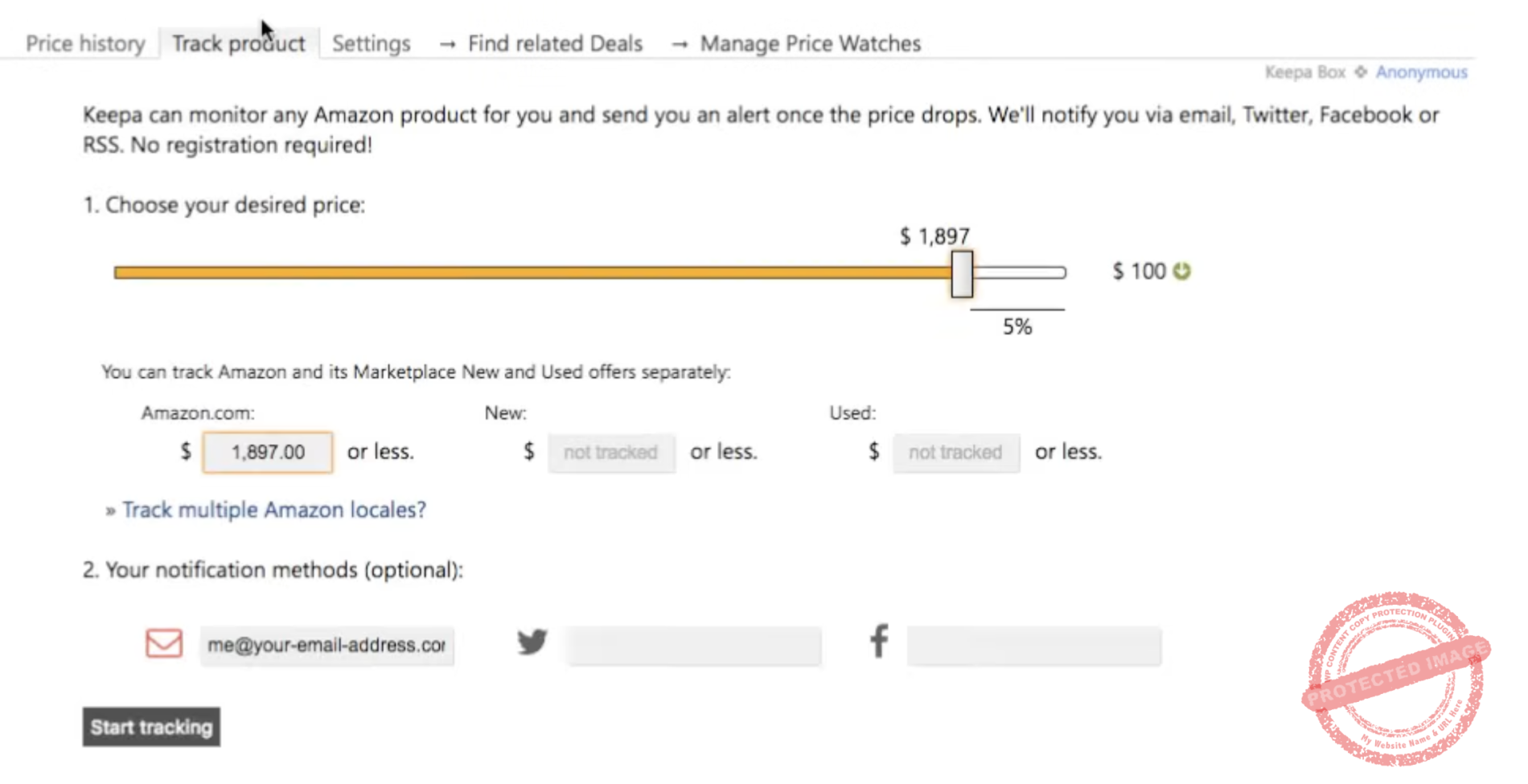
Set it up and wait for your price drop notification!
Creating a Keepa Account (Optional but Recommended)
With a free account, you can:
- Manage all your tracked products in one place
- Sync across different devices
- Manage multiple price alerts
How to register: Click “Login/Register” at the top right of the Keepa graph → Select “Register” → Enter username, email, and password
Real Examples: Spotting Real vs Fake Sales
Let’s look at practical scenarios and how to make smart buying decisions with Keepa.
✅ Scenario 1: Real Sale – Buy It!
Situation: “Limited Time Sale” displayed, current price ¥6,980
Keepa shows:
- Average price over past 3 months: ¥8,500
- All-time low: ¥6,500
- Current price is near all-time low
❌ Scenario 2: Fake Sale – Don’t Buy!
Situation: “30% OFF” displayed, was ¥12,000 → now ¥8,400
Keepa shows:
- Past 3 months: consistently ¥8,000-8,500
- Suddenly raised to ¥12,000 just before the sale
- Current ¥8,400 is actually higher than normal
⏳ Scenario 3: Price Fluctuating – Wait
Situation: No sale tag, current price ¥15,000
Keepa shows:
- Last month’s low was ¥11,000
- Price pattern: drops every 1-2 months
- Currently at recent high
How to Use During Big Sales (Prime Day/Black Friday)
When the sale starts, compare to see if it’s really cheaper.
Many products are raised before sales, then “discounted” back to normal prices.
FAQ
Is Keepa completely free?
Basic features (viewing price history, setting price alerts) are completely free. The paid version offers additional data like sales rank, but the free version is enough for regular consumers.
Is Keepa safe? Any privacy concerns?
Keepa is a well-known tool used worldwide for years and is safe. It only displays price data on Amazon pages and doesn’t collect personal information.
Why don’t some products show price history?
Newly listed products may not have enough data yet. Give it some time, and the history will appear.
Is Keepa’s price data accurate?
Very accurate. Keepa updates data every few hours and is one of the most reliable Amazon price tracking tools available.
Does it work on sites other than Amazon?
Keepa is Amazon-only. For tracking prices on other sites, you’ll need different tools.
Is the mobile app useful?
The Keepa mobile app allows product searches and tracking, but the browser extension is more convenient. For desktop shopping, the extension is recommended.
💰 How Much Can Keepa Save You?
~¥2,000
~¥5,000
~¥3,000
¥10,000+
🛒 Start Shopping Smarter
Install Keepa and never overpay again
5 minutes to install, savings for life
Summary
- Keepa is a free Amazon price tracking tool
- Installation takes 5 minutes, works automatically on Amazon
- Look at the blue line to tell if prices are high or low
- Set up price drop alerts to get notified of good deals
- Check prices on Keepa before big sales to avoid fake discounts
Next time you shop on Amazon, check Keepa’s price graph first.
Spending the same money to get better deals—that’s what a real “sale” should be.